Not sure how to join the class on your phone? Follow the steps one by one
This guide is designed for partners who are not familiar with mobile phone operation. Please follow the steps shown on the screen slowly. Complete one step at a time, and there is no need to rush.
Please prepare before starting
1. Please first open the class invitation received in LINE. 2. It is recommended to operate your phone in portrait mode. 3. If the screen cannot connect or keeps loading, please restart your phone and try again. 4. If you still cannot join with your phone, please use another phone or a computer to attend the class.
Important Reminder
Please make sure to enter your correct name. This helps the host know who you are and admit you into the meeting smoothly.
STEP 1
After receiving the class invitation, please tap the class link first
Start by entering the Teams meeting page through the blue link in LINE or your message.
Step 1
After receiving the class invitation, please tap the link
Please find the “class link” in the message and tap it directly. If there is no response after tapping, press and hold the link and try again.
Note
If you cannot connect or the screen keeps loading, please restart your phone first and try again. If you still cannot connect, please use another phone or a computer to attend the class.
STEP 2
Tap “Join Meeting”
After entering the Teams screen, please press the blue join button.
Step 2
Tap Join Meeting
Please directly press the large blue button in the middle of the screen. You do not need to adjust any other settings first.
Note
If you cannot connect or the screen keeps loading, please restart your phone first and try again. If you still cannot connect, please use another phone or a computer to attend the class.
STEP 3
Please choose “Join as a guest”
If you do not have a Teams account, you can simply join as a guest.
Step 3
Tap Join as a guest
Please do not worry. This is only for attending the class, and you do not need to register a new account in advance.
Note
If you cannot connect or the screen keeps loading, please restart your phone first and try again. If you still cannot connect, please use another phone or a computer to attend the class.
STEP 4
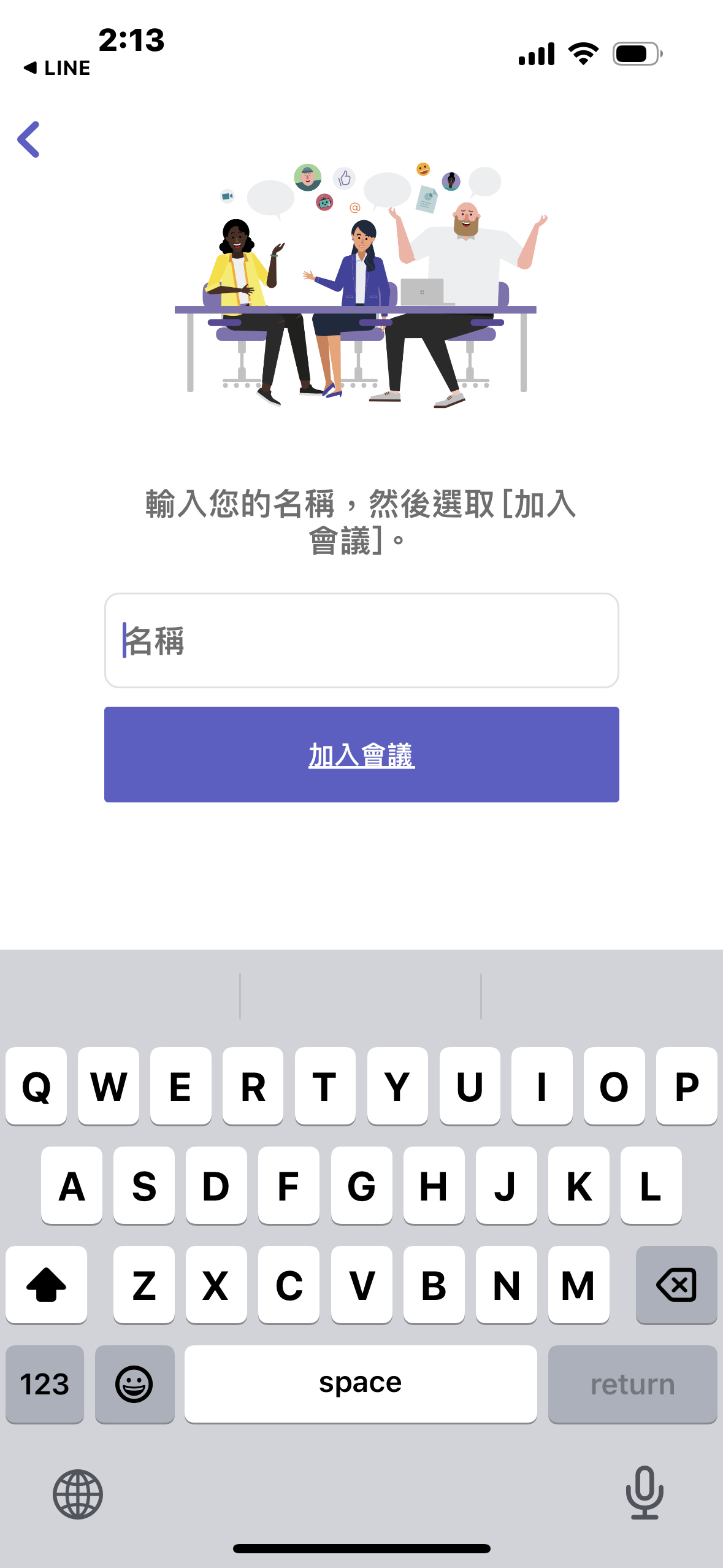
Please enter your correct name
After entering your name, the host will know who you are and can admit you into the meeting.
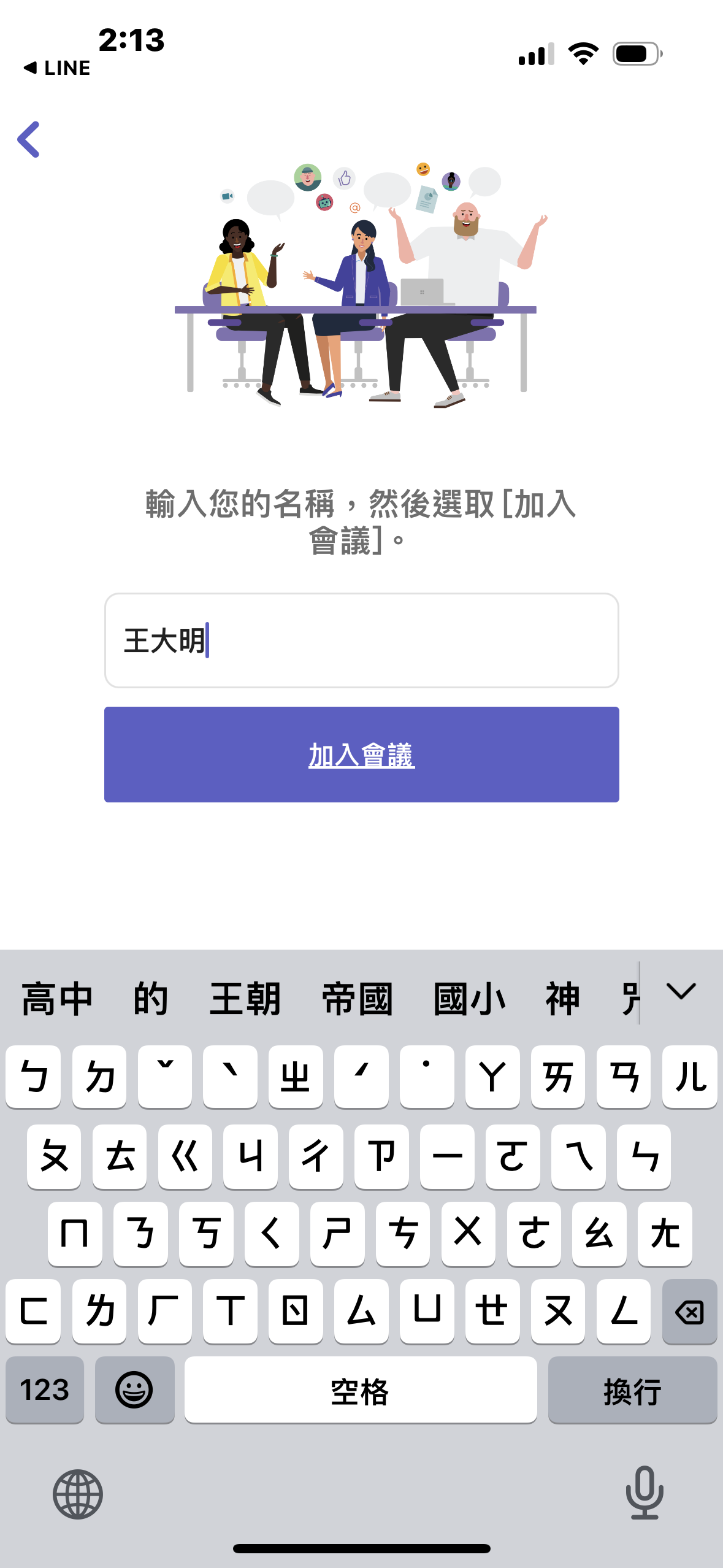
Step 4
Please enter your correct name
It is recommended to enter the name you usually use for class, for example: David Wang. Please do not enter a nickname or unclear English text.
Note
If you cannot connect or the screen keeps loading, please restart your phone first and try again. If you still cannot connect, please use another phone or a computer to attend the class.
STEP 5
After entering your name, tap “Join Meeting” again
After confirming that your name is correct, press Join Meeting to submit your request to enter.
Step 5
Tap Join Meeting
If the button does not appear, please first check whether the name field has been filled in.
Note
If you cannot connect or the screen keeps loading, please restart your phone first and try again. If you still cannot connect, please use another phone or a computer to attend the class.
STEP 6
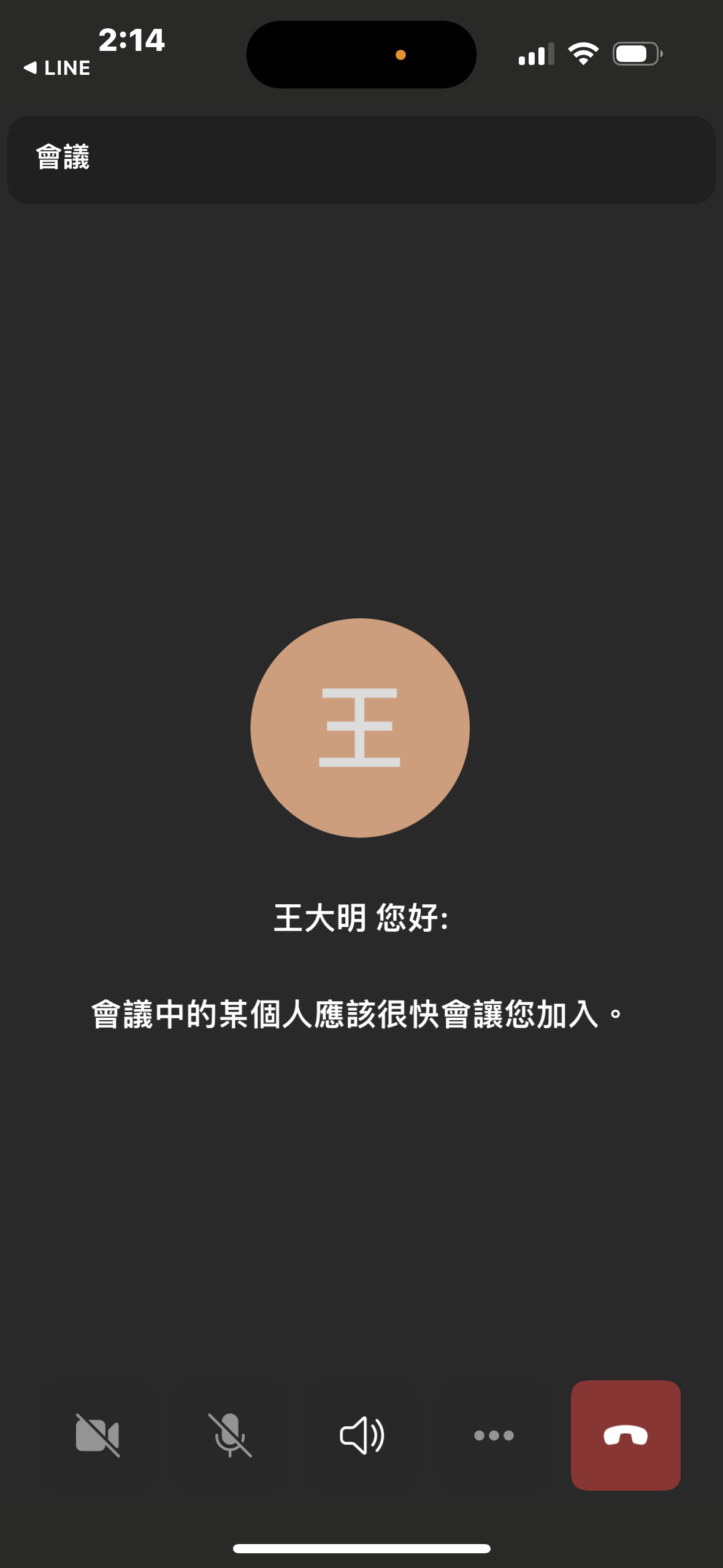
After entering the waiting screen, please wait for the host to admit you
Seeing the waiting screen means you are almost done. Please do not leave the page.
Step 6
Please wait on this screen. The host will admit you into the meeting.
Please wait patiently at this point. Do not repeatedly exit and re-enter, as this may make it harder for the host to identify you.
Note
If you cannot connect or the screen keeps loading, please restart your phone first and try again. If you still cannot connect, please use another phone or a computer to attend the class.
You have completed the Teams class setup
As long as you follow the six steps above, most partners should be able to join the meeting smoothly. If you still have problems, please contact your upline or store manager first for assistance in entering the class.